How to check a 3D print before slicing
Updated 19 November 2026
Check six things before you slice: that the part fits the bed and sits flat on it, where supports will go and whether they can be removed, walls and gaps too thin for the nozzle, the best way up, how it hangs if it hangs from a loop, and which layers to pause at for inserts or colour changes. In ScadBox, Design › Print Check (⌥⌘P) runs these checks on the model as you edit it, and AI agents get the same checks as MCP tools.
Why check before the slicer
A slicer tells you what it will do, not whether the design was a good idea. It will happily fill a sealed box with supports that can never come out, or drop a 0.3 mm wall without a word. By the time you see the problem in the slicer's preview, or worse, on the printer, you're back in the design anyway. Checking the design itself shows the problem where you can fix it.
Print Check in ScadBox
Turn it on with Design › Print Check (⌥⌘P), or the button in the 3D view. A panel opens beside the model with the results in six groups: Bed, Supports, Thin walls and gaps, Orientation, Hanging and Pauses. Each item is marked as fine, a note, a warning or a problem; select one and ScadBox outlines where it is on the model.
The colour control above the list recolours the model:
- Supports: blue where supports come away, orange where they're hard to reach, red where they're sealed in.
- Thin Walls: yellow for thin, red for too thin to print, purple for gaps narrow enough to fuse shut.
- Design: the design's own colours.
Print Check runs again whenever the model changes. If the design has a layout parameter with a print option, it checks the print layout, the parts laid out as they go to the slicer, without changing your file.
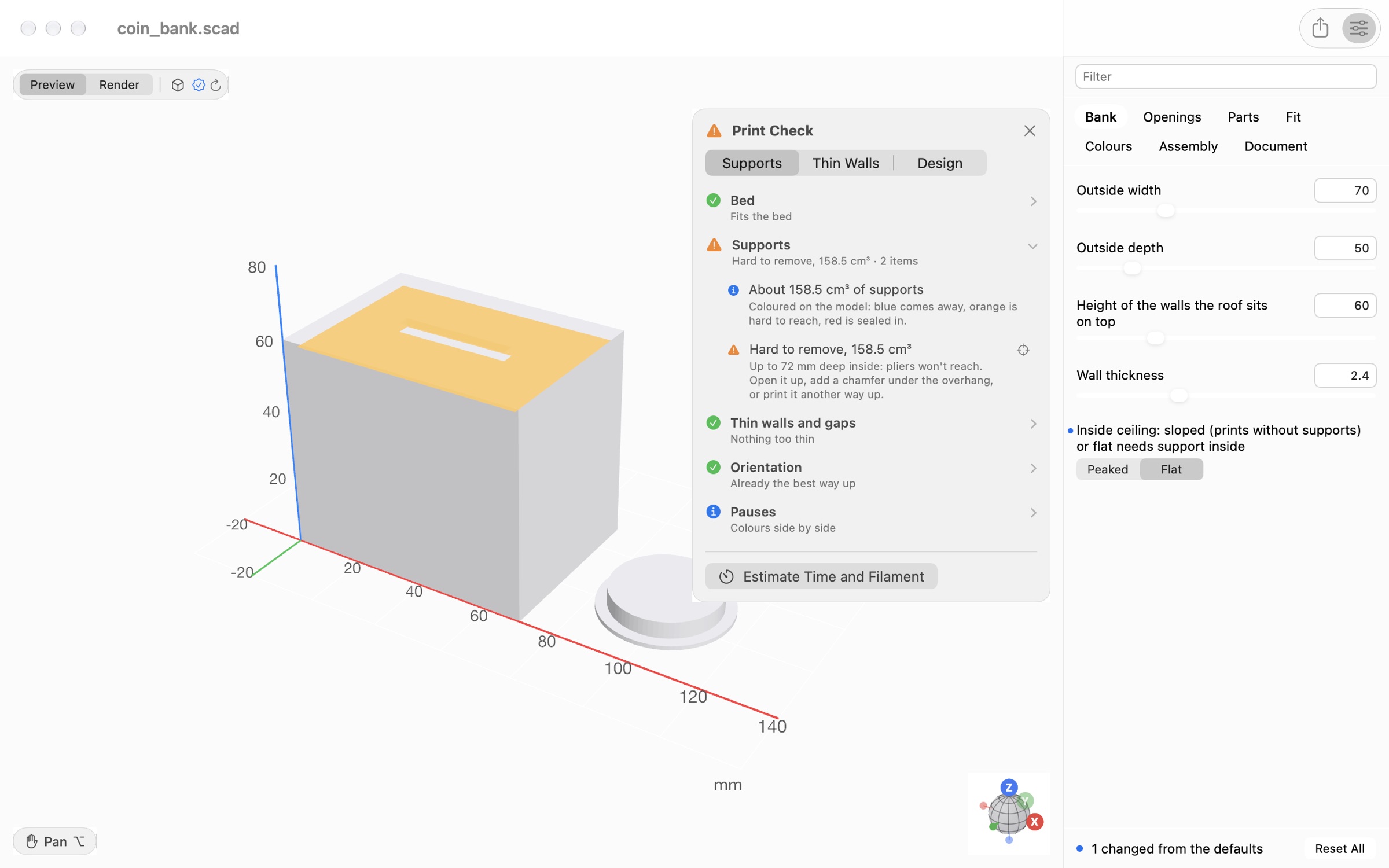
With Bambu Studio or OrcaSlicer installed, Estimate Time and Filament at the bottom of the panel slices the model with the slicer's own stock profiles and shows the print time and filament per colour. Print Check and slice estimates in the app are part of ScadBox Pro (US$19.99 a year, in the Mac App Store version). See pricing.
The six checks
1. Bed fit and contact
The part has to fit the bed with room to spare and sit on it with a flat face. ScadBox uses the bed size from your printer profile (Settings › Printer) and checks that the part sits on the bed. The agents' assess tool also catches separate bodies and parts floating above the bed, which usually mean two pieces that were meant to touch don't quite. If a part is too big, the agents' split tool chooses where to cut it and adds alignment pins.
2. Supports, and whether they can come out
Overhangs steeper than 45° that are too wide to bridge need support from below. That's fine on the outside of a part. It isn't fine inside a closed cavity, such as a box printed in one piece or the rooms of a model house: those supports are trapped forever. ScadBox floods the air around the part from outside, so it can tell supports you can reach from ones behind a narrow opening and ones sealed in. To fix them, give inside ceilings a 45° slope or a pointed arch, keep flat spans under about 10 mm, or split the part.
3. Thin walls and narrow gaps
Anything thinner than the nozzle won't print at all, and anything under two line widths is weak. For a 0.4 mm nozzle, keep walls, pins, fins and text strokes at least 0.8 mm, 1.6 mm or more for anything that takes force, and keep gaps that must stay open at least 0.3 mm. Scale models are the usual victims: a 1 mm railing drawn at full size is 0.04 mm at 1:24.
4. The best way up
ScadBox tries each axis and each large flat face down, and compares the overhangs that need support, bed contact and height. Strength matters too: printed layers are about half as strong pulled apart as along their length, so a bracket should print with its arm along the layers, not across them.
5. Hanging
For ornaments, keychains and signs, it works out the angle the part hangs at from its loop, and where the loop should go so it hangs straight.
6. Pauses
Magnets, nuts and tags sealed inside a part go in during a pause, and colours stacked by height need a filament change. Print Check lists the layer to pause at for each. See printing two colours with one nozzle.
The same checks for AI agents
With ScadBox's MCP server connected, an agent such as Claude Code runs the checks one at a time and fixes what they find:
assess: bodies and floating parts, bed fit, overhangs and flat ceilings, bed contact, narrow necks and mass, with an overhang heatmap.supports: where supports go, and whether each is removable, hard to reach or trapped.feature_check: walls, pins and text strokes too thin for the nozzle, and gaps too narrow; passscalefor scale models.orient: the best face down, with therotate()to apply.hang_checkandpause_plan: how it hangs, and the layers to pause at.slice: real print time, grams and metres of filament per colour, and whether supports are generated, from Bambu Studio or OrcaSlicer. It takes from 10 seconds to a few minutes.
Setting it up takes a minute: see using OpenSCAD with Claude Code.
Questions
- Does Print Check replace the slicer?
- No. It checks the design before it goes to the slicer, so problems like trapped supports or walls too thin to print are fixed in the model. You still slice and print with your usual slicer.
- What is the minimum wall thickness for 3D printing?
- At least two nozzle widths, which is 0.8 mm for a 0.4 mm nozzle. Use 1.6 mm or more for anything structural, and keep gaps that must stay open at least 0.3 mm.
- What is a trapped support?
- Support material inside a sealed cavity, such as a closed box printed in one piece. It can never be removed. Sloping the inside ceiling at 45 degrees or more, using a pointed arch, or splitting the part avoids it.
- Which slicers can ScadBox use for time and filament estimates?
- Bambu Studio or OrcaSlicer, installed in Applications. ScadBox slices with the slicer's own stock profiles and reports print time, filament per colour and whether supports were generated.
- Is Print Check free?
- Print Check and slice estimates in the app are part of ScadBox Pro, US$19.99 a year in the Mac App Store version. ScadBox itself is free to download.